



I still remember the odd thrill of asking my laptop a question and getting back not a generic answer but something that sounded like me. That happened the first week I installed OpenClaw. In this short guide I explain, in plain English, how I turned a humble MacBook into a local gateway for AI models, built a personal CRM, a searchable knowledge base and a memory system that actually remembers my quirks. Expect practical prompts, rough edges, and a few tangents where I admit what I broke and why it was worth it.
What is OpenClaw and how I made it mine
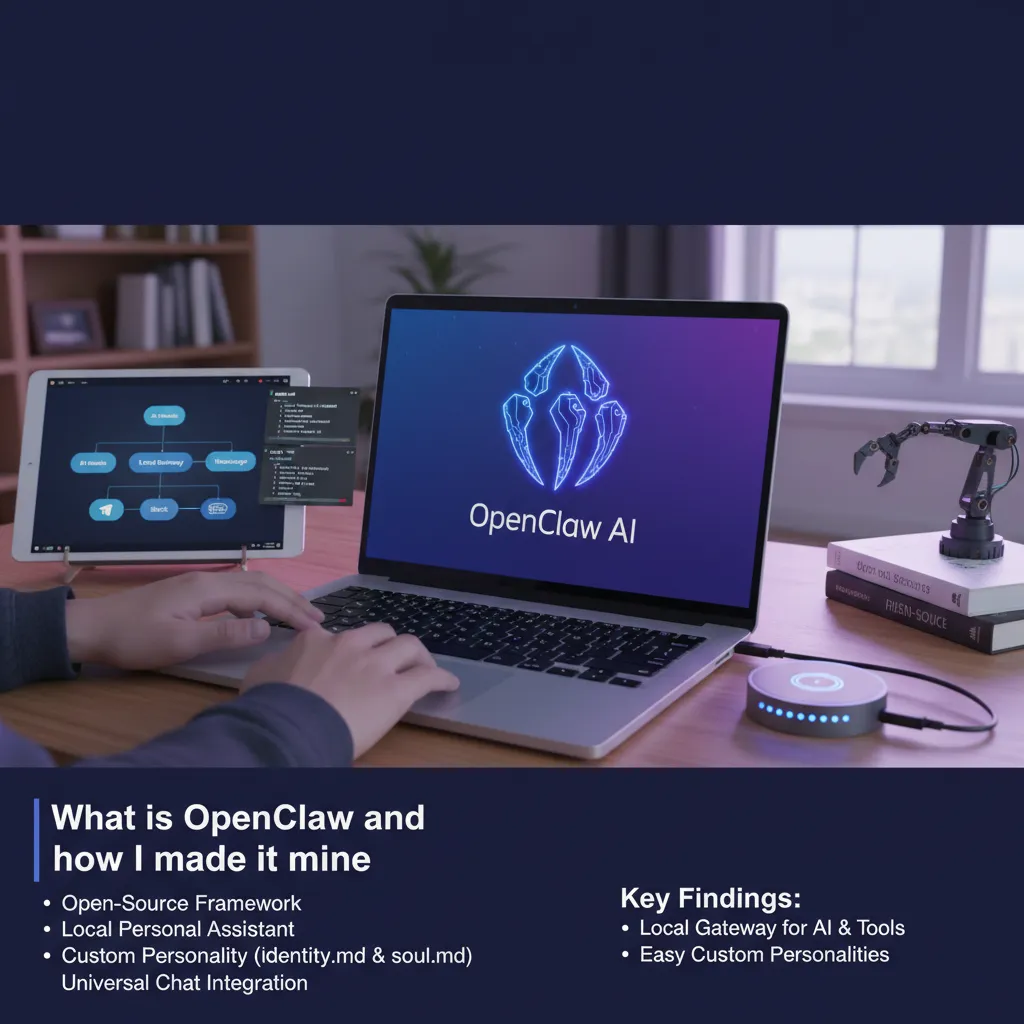
OpenClaw AI is an Open-Source AI framework that lets me stitch together the best models and turn them into a proper Personal Assistant on my own computer. The big idea is simple: instead of living in one website, it becomes something I can talk to in the chat apps I already use, and it gets more useful as it learns how I work.
What makes OpenClaw different for me is the local-first setup. It acts like a Local Gateway between an AI model and real tools: it can reach files, run scripts, and help with the same kinds of tasks I’d normally do manually at my MacBook. I prefer keeping memory and data on my machine rather than pushing everything into external “super memory” services.
OpenClaw is the most important AI software I have ever used.
My setup: models, machine, and a local gateway
I run it locally on my MacBook (it also works on Windows or Linux). For models, I can plug in frontier options like Claude or GPT using my own API keys, or run local models through Ollama when I want to stay fully offline. OpenClaw then connects that model to tools like file access and script execution, which is where it starts to feel like a real assistant rather than a chatbot.
Custom Personality with identity.md and soul.md
Making a Custom Personality is the easiest part. I only had to edit two files:
identity.md— the basics: who the assistant is, what it helps with, and any hard boundaries.soul.md— the “how”: tone, formality, humour rules, and how concise or detailed it should be.
That’s where I set it to sound like me: plain language, British spelling, and a helpful but no-nonsense style.
Talking to it anywhere (without changing my habits)
Because OpenClaw integrates with common messaging platforms, I can message my assistant from Telegram, Slack, WhatsApp, iMessage, or plain text messaging. That means it’s available wherever I am, without me needing to open a special app or dashboard.
My personal CRM: quick to build, deeply useful
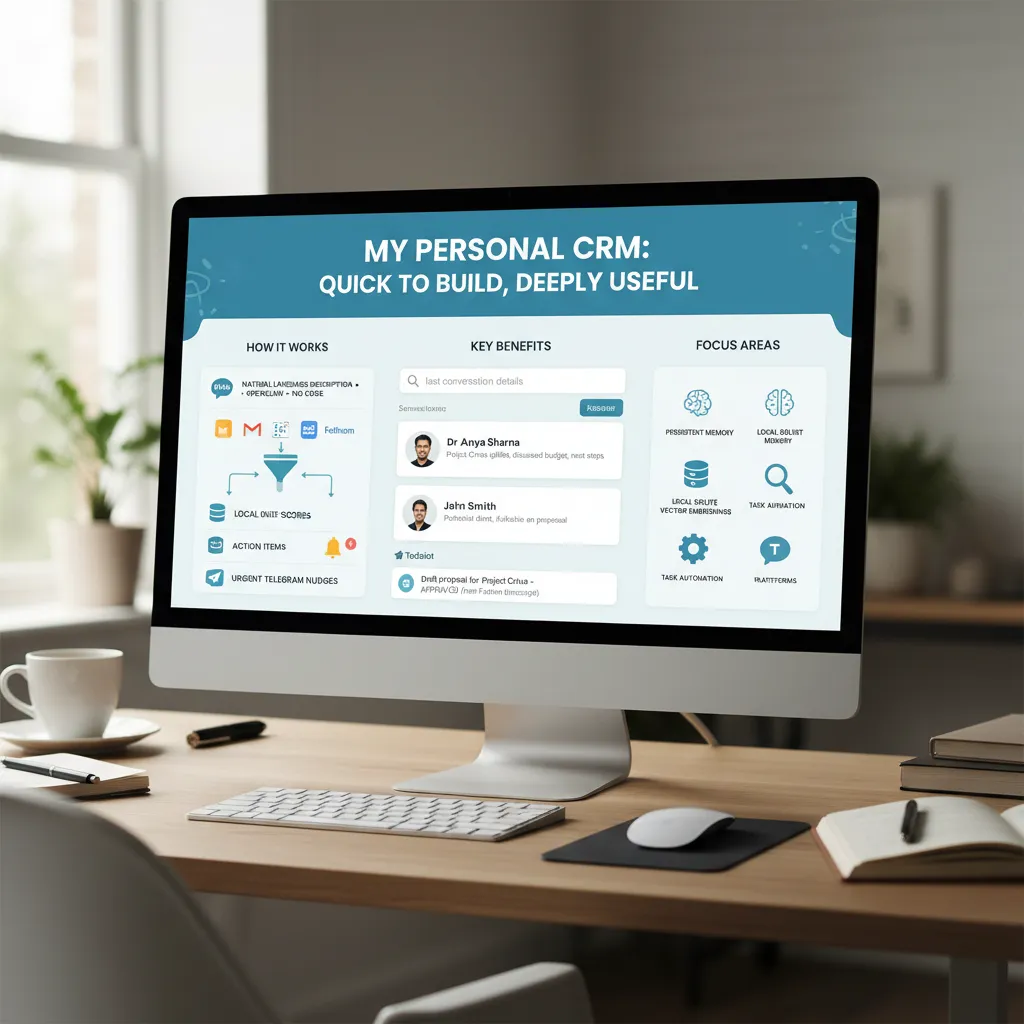
The first major thing I built with OpenClaw was a personal CRM local to my machine. I didn’t write code. I simply described what I wanted in plain English, and OpenClaw assembled the whole workflow for me. It still feels a bit wild that I can spin up something this useful in about 30 minutes, then spend another hour or two refining it to match how I actually work.
Build a personal CRM that automatically scans my Gmail and Google Calendar to discover contacts from the past year.
Persistent Memory from Gmail, Calendar, and Fathom
My CRM ingests from multiple sources: Gmail, Google Calendar, and Fathom (an AI notetaker that records and transcribes my meetings). Fathom pulls every 5 minutes during business hours, and my email scanner runs every 30 minutes to catch urgent messages. Before anything is saved, the pipeline filters noise like newsletters and cold pitches, and keeps only real context worth remembering.
After sanitising, an LLM reviews the content and decides which conversations and contacts matter. It uses both the email context and light research on the contact, then writes clean records into a local SQLite database. Right now I have 371 contacts stored with Persistent Memory I can query any time.
SQLite vector embeddings for natural language search
The database is SQLite, but with a vector column for SQLite vector embeddings. That means I can ask questions in normal language, like “what did I last discuss with John?” or “who did I speak to at Company X?” A local CRM with vector search makes those “last conversation” queries fast and reliable, because it searches meaning, not just keywords.
Task Automation and Messaging Platforms that only interrupt when it matters
It also extracts action items from meetings and emails. If I say, “I’ll send that later today,” it becomes a task. I run an approval step before it creates anything in ToDoist, which reduces false positives. Completion checks run three times daily, and action items older than 14 days auto-archive.
- Task Automation: follow-ups, snooze, mark done, and merge suggestions
- Relationship health scores and duplicate detection
- Urgent nudges via Telegram (my chosen Messaging Platforms channel) only when truly needed
Knowledge base and RAG: my external brain
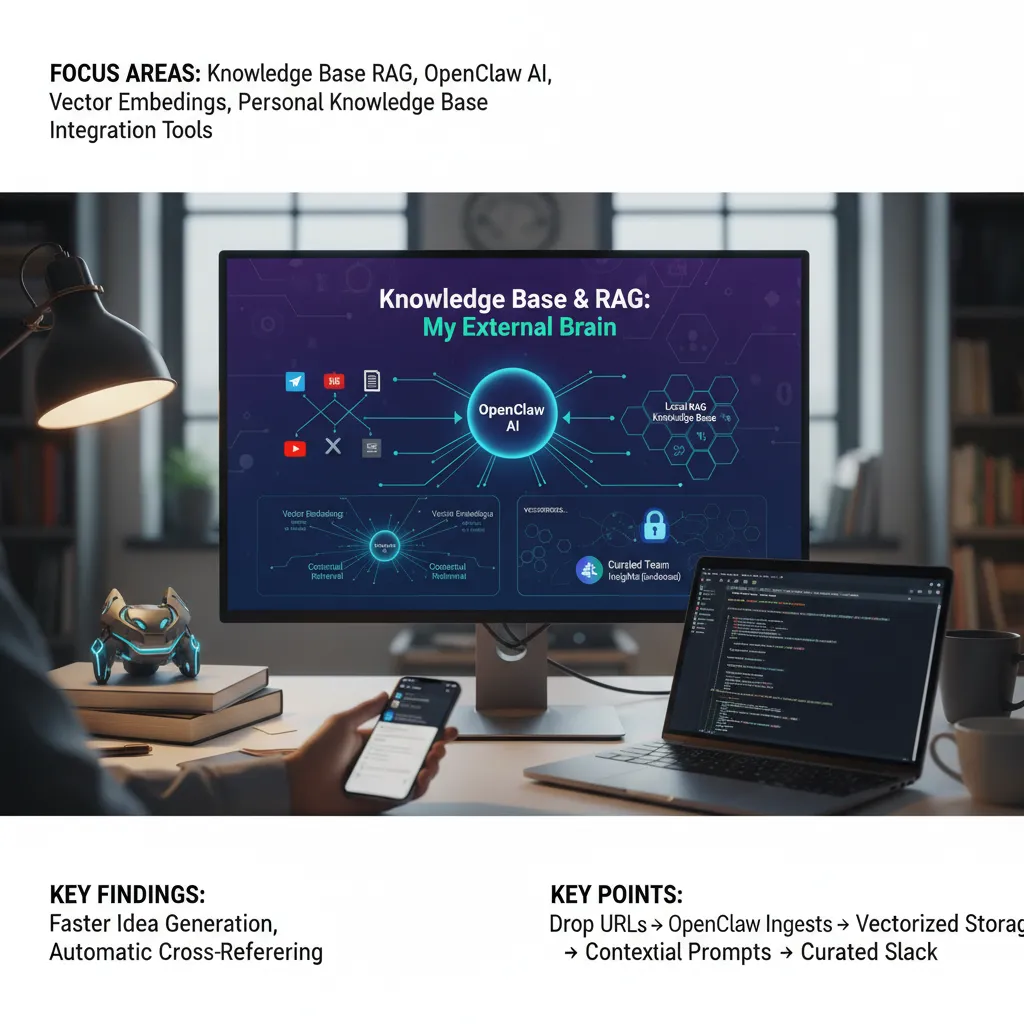
The feature I use most in my local assistant is my knowledge base RAG. For years I wanted one place for every useful thing I read, watched, or meant to remember. With OpenClaw AI, I finally got it: drop a link, let it ingest, then search it later in plain English.
Build a personal knowledge base with RAG. Let me ingest URLs by drop.
Drop links in Telegram, ingest everything
My workflow is simple. I send a URL to a Telegram chat and OpenClaw pulls in the content and metadata. It handles:
- Articles
- YouTube videos
- X (Twitter) posts and full threads (including replies)
- PDFs
- GitHub repos and linked docs
- Hugging Face collections
If a post links out to other URLs, OpenClaw follows those too and stores them in the same Personal Knowledge Base. That “grab the thread, then grab the links” behaviour is what makes it feel like an external brain rather than a bookmarks folder.
Vector embeddings for fast recall and cross-referencing
Every item is converted into Vector embeddings and stored locally on my MacBook. That means I can ask questions in natural language and OpenClaw can pull the right chunks of context into the prompt. In practice, this makes idea generation and referencing far faster than manual search.
Because everything is vectorised, it also cross-references related material automatically. When I saved a Sam Altman post about Peter Steinberger (the OpenClaw creator) joining OpenAI, it immediately connected it to older items I’d already stored. When Qwen 3.5 dropped, it pulled in the GitHub repo, Hugging Face collection, and linked docs, then filed it all together.
Selective team sharing via Integration Tools
I also use Integration Tools to share only the best items with my team in Slack. OpenClaw posts to a channel only when I endorse something, which avoids noise. That way recommendations stay meaningful, and the shared feed doesn’t turn into spam.
Memory, automation and the self-improving loop
Persistent Memory and Long-Term Memory (stored locally)
One of the biggest reasons OpenClaw feels useful day to day is its Persistent Memory. It has a very capable memory system, and there are a few different flavours. I’m using the default memory system for now, although there’s a newer out-of-the-box option called QMD (built by Tobi Lütke, Shopify’s founder). There are also external services like Super Memory, but I prefer keeping my Long-Term Memory on my local machine.
The flow is simple: I chat with my assistant, and it takes daily notes. Those notes are saved into a memory folder as a markdown file named by date. It then distils stable preferences into a separate file, and uses that in future sessions.
It starts to store it in memory. MD as distilled preferences. Then the next session, it will actually read the file and it updates the identity files per your memories.
On top of that, OpenClaw automatically vectorises these markdown files so it can run fast RAG-style searches across my past conversations. If you don’t know what RAG is, you can ignore the term—the key point is that recall becomes easy and natural.
Proactive Behaviour via Heartbeat Scheduler and Background Tasks
Memory is only half the story. The other half is Proactive Behaviour, driven by the Heartbeat Scheduler and cron-like Background Tasks. I run a Fathom pipeline that polls for meeting transcripts every 5 minutes during business hours. It’s calendar-aware, waits for meetings to finish, then ingests the transcript and summary, matches attendees to CRM contacts, and drafts action items.
I also run an urgent email scan every 30 minutes. If something truly time-sensitive lands, it pings me in Telegram—otherwise it stays quiet.
The self-improving loop (approvals that update prompts)
Where it gets interesting is the approval step. Action items aren’t always perfect, so OpenClaw asks me to approve or reject before it creates tasks in Todoist. When I reject an item, I can say why, and it learns a better filter for next time by updating its prompt. Over time, these self-improving prompts reduce friction because the system adapts to my decisions, not just my data.
Security, limits and a few caveats
Local Gateway, Computer Access, and why local-first helps
OpenClaw works by ingesting from multiple sources: Gmail, my calendar, and Fathom (the AI notetaker that joins meetings and transcribes them). I run this through a Local Gateway so most processing happens on my own machine. That local execution reduces certain risks because less data is sent out by default, but it does not remove the need for Security Hardening. The moment you add Computer Access (even just to read files or send messages), you are building something that can do real damage if it is tricked or misconfigured.
Security Hardening: API Key hygiene and Prompt Injection
Gmail ingestion is the bit that makes people nervous, and fairly so. I’m not pretending it’s risk-free. As I said while building it:
Nothing is perfect, but I think I'm doing a pretty good job.
My baseline is simple: keep every API Key out of prompts and logs, store secrets in environment variables, and lock down scopes so the assistant only gets what it needs. I also treat every email and transcript as untrusted input. That matters because Prompt Injection is real: a message can try to override instructions, exfiltrate data, or push the model into taking actions it shouldn’t. I mitigate this with strict system prompts, allow-lists for tools, and a “read-only first” approach where the model can summarise, but cannot act unless I approve.
Operational limits: false positives and approval-based pipelines
Practically, the assistant scans mail regularly (every 30 minutes for urgent messages), filters noise like newsletters and cold pitches, sanitises the data, and then uses an LLM to decide which conversations are worth saving locally. It’s good, but not perfect. I’ve seen false positives in action item extraction, so I tune thresholds and give feedback. An approval-based pipeline helps here: it mitigates extraction errors and lowers the risk of automated mistakes becoming real-world actions.
Memory backends: convenience vs privacy
Finally, you have to choose where “memory” lives. Keeping everything on-device fits my threat model, but external services (like Super Memory or other cloud options) can be more convenient. The trade-off is simple: more convenience usually means more exposure, so pick the balance you can live with.